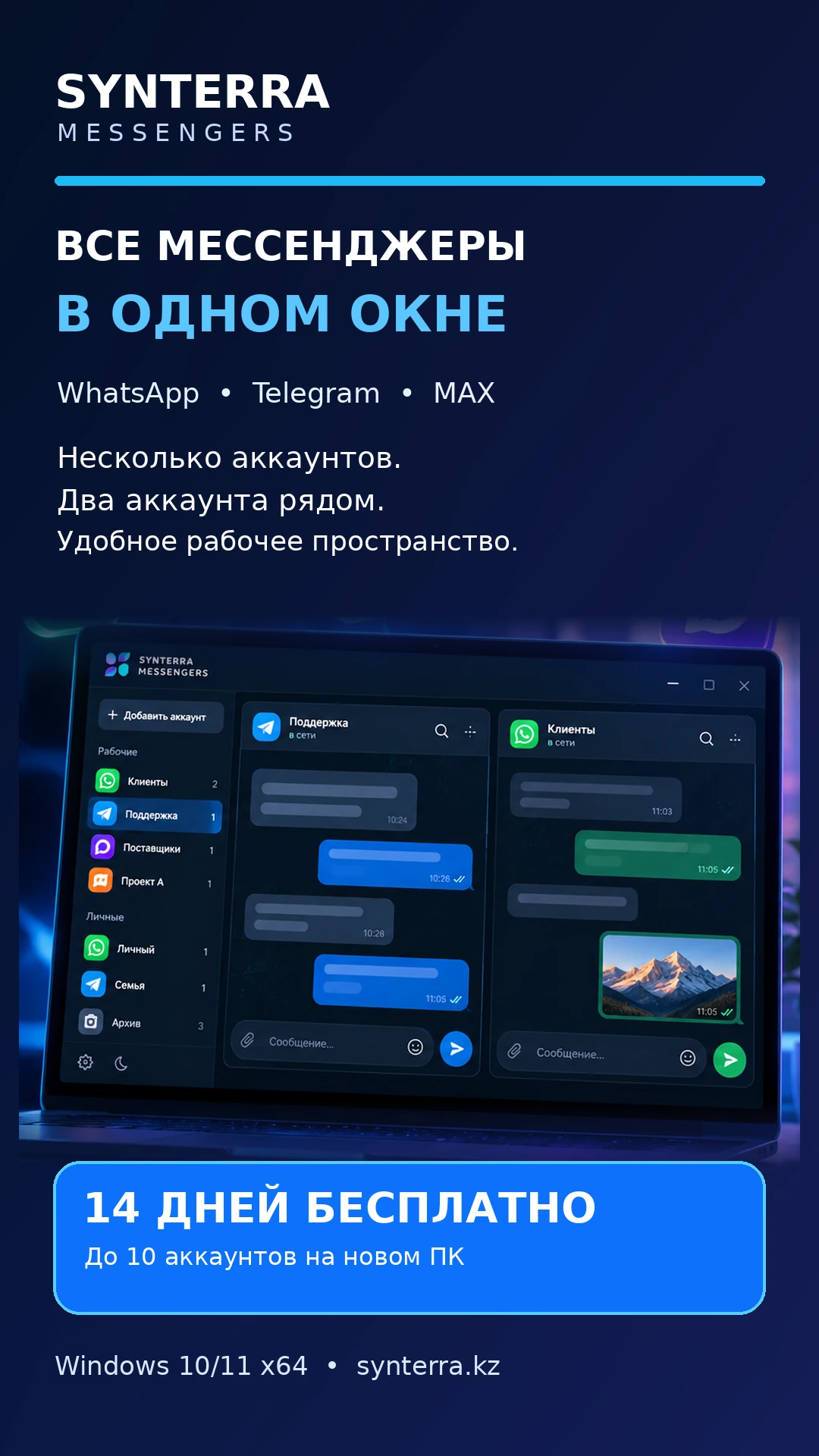

“Where did we discuss that?”
Bring your connections into one list. Name them “Orders”, “Suppliers”, “Personal” — then find the right one by name or group.
Know where to returnWhatsApp, Telegram, MAX. Personal and work accounts side by side, with clear names and a place of their own. Less time finding the right window. More attention to the conversation.
WhatsApp will open with a prepared request. Tap Send, and we will send the program archive and setup instructions in the chat.
14 days free · up to 10 accounts in total
On a new computer. No key needed to get started.
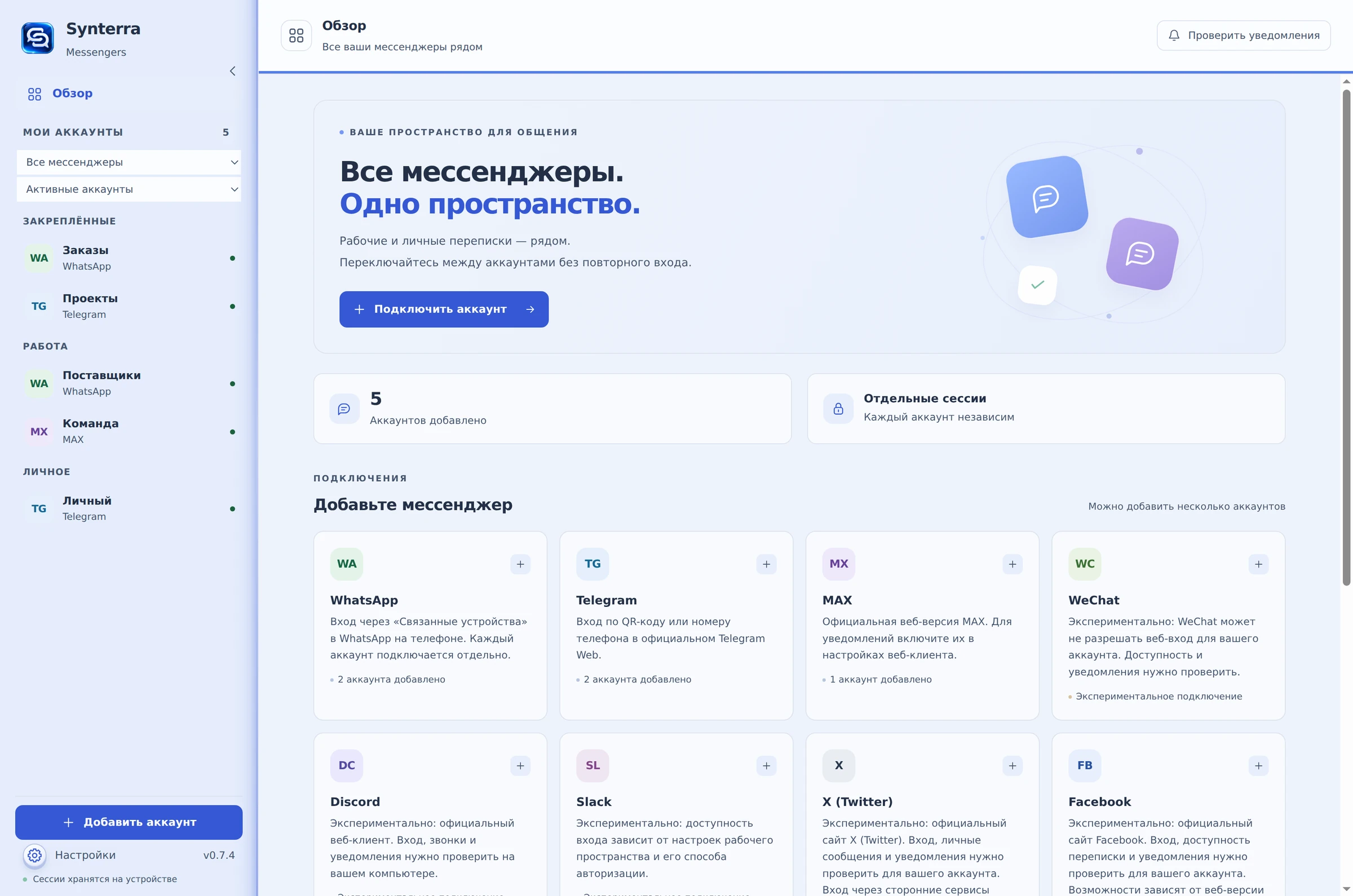
Your personal number, work WhatsApp, Telegram for a project. When each account lives separately, even a simple conversation means switching between windows.
Bring your connections into one list. Name them “Orders”, “Suppliers”, “Personal” — then find the right one by name or group.
Know where to returnDistinguish numbers and projects with names, colours and groups. Before sending, it is easier to check which account you are replying from.
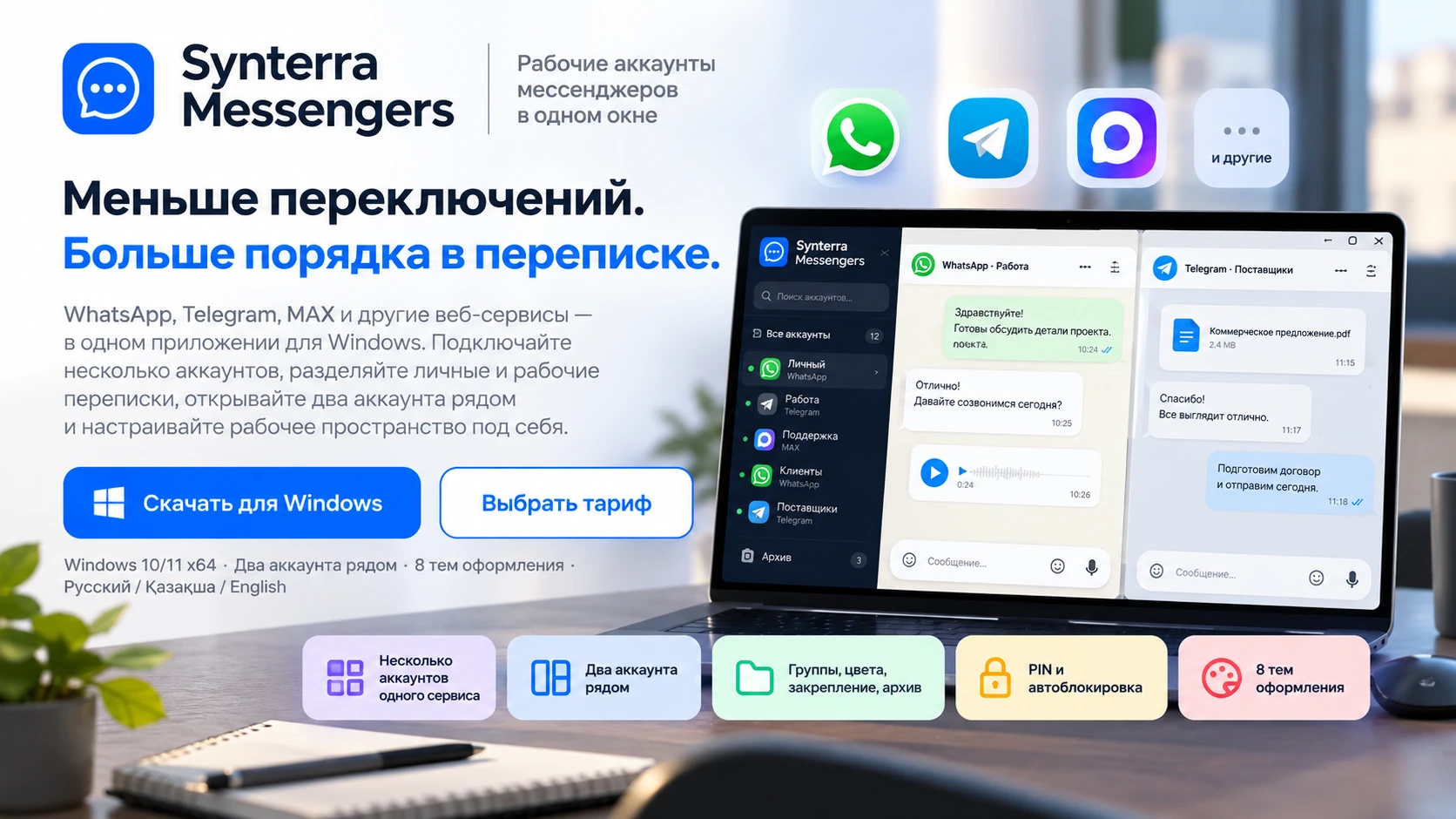
Work and personal are easy to tell apartOpen two accounts side by side: the customer on the left, the supplier on the right. Adjust the panel widths to suit the task.
Both conversations in viewYou use the web clients you already know. Synterra arranges them around your work: a separate session for every account, a place for every task.
Conversations stay inside each service. There is no combined message feed. A messenger may require you to sign in again under its own rules.
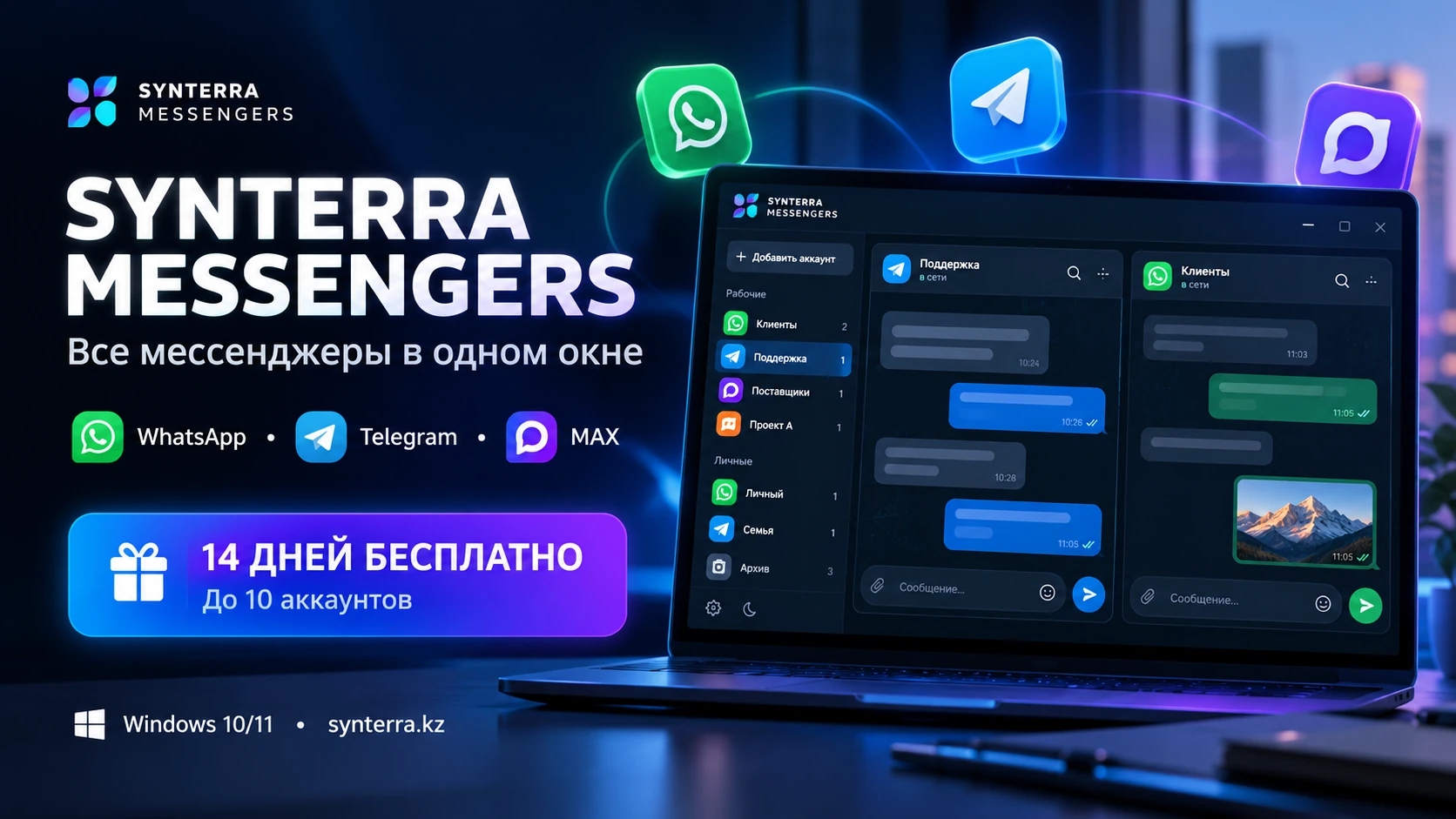
Real screenshots of the application. Choose what matters for your work and open an image for a closer look.
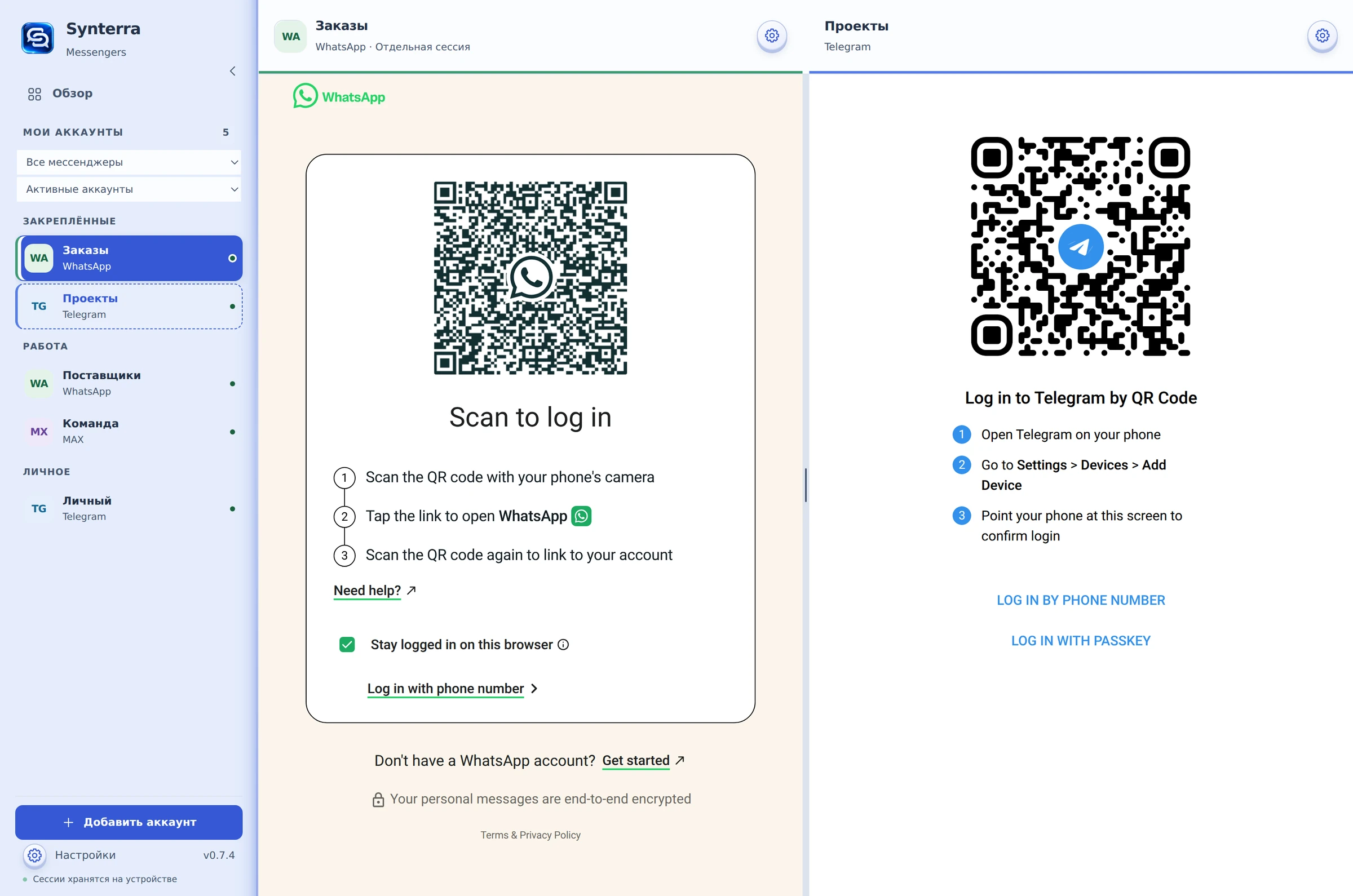
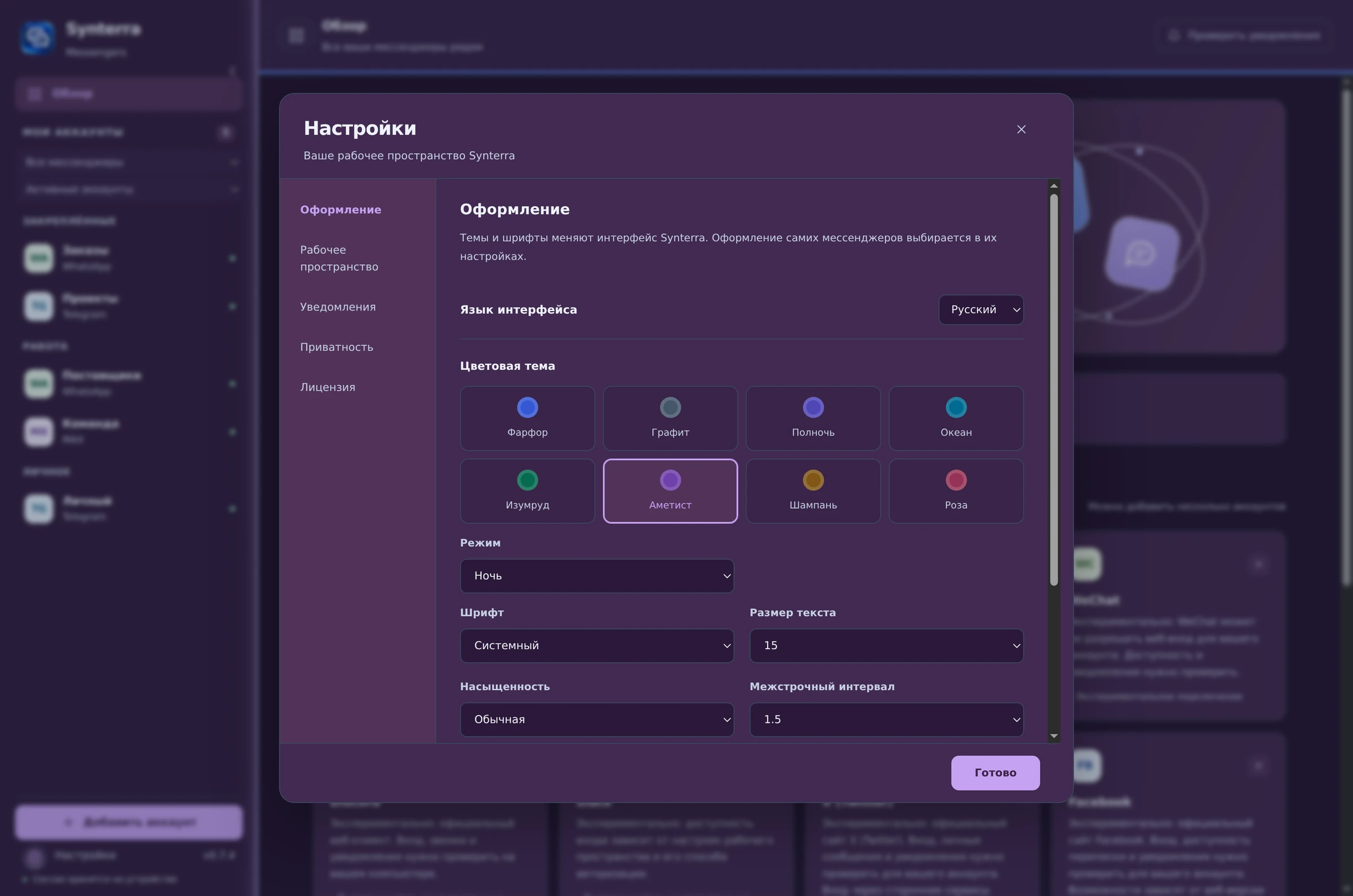
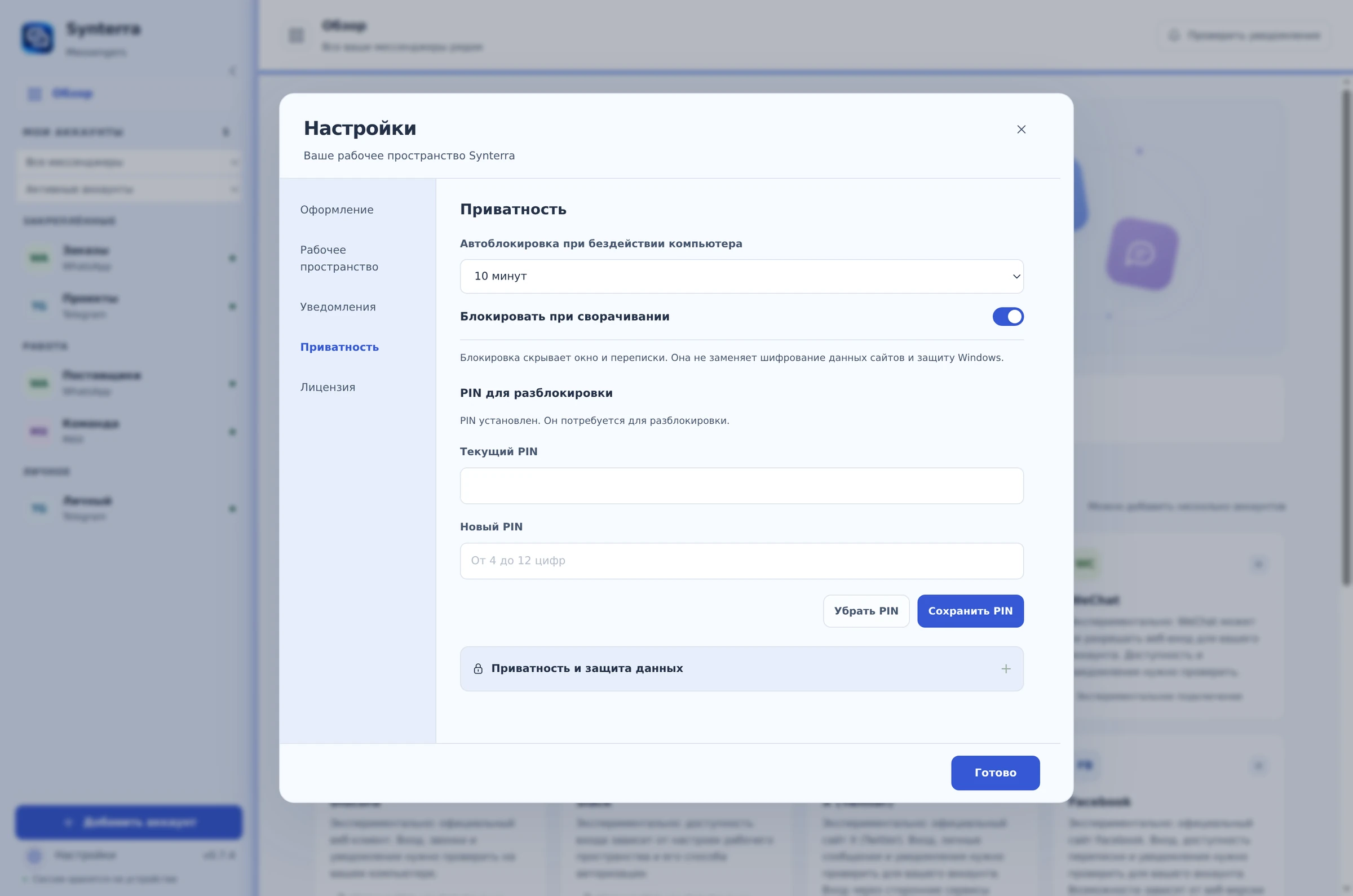
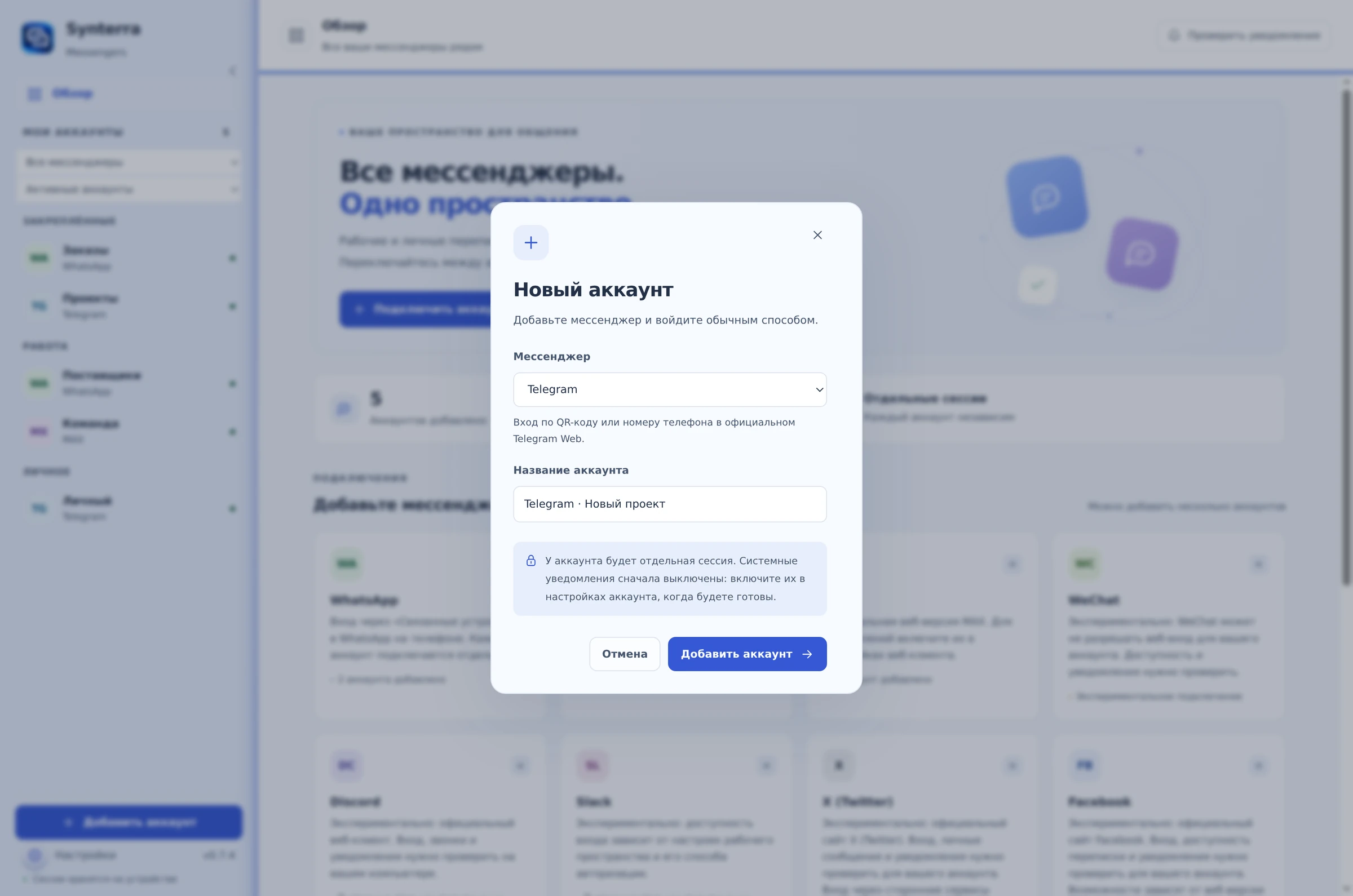
Screenshots use a demonstration profile without real conversations. Service sign-in screens may change. The supplied screenshots show the Russian interface.
Work numbers arranged by business area. Customers and suppliers side by side. Find the right account more easily before replying.
“Orders” · “Suppliers”Use names and groups for each project. Frequently used connections are pinned at the top.
“Project A” · “Project B”Personal Telegram and work WhatsApp in one app — each with its own sign-in and a clear name.
“Personal” · “Work”All eight services in the app catalogue, plus an Other service connection for your own HTTPS address. Each account keeps its own separate session.
Connections for WeChat, Discord, Slack, X (Twitter), Facebook and Other service are experimental. Check sign-in and the features you need with your own accounts during the free trial. Calls and screen sharing have not been verified. Messaging requires an internet connection.
Every paid plan includes all workspace features. The account limit applies separately to each messenger.
Total price for 365 daysOne computer · prices in tenge · no automatic charges
Up to 3 accounts in each messenger: for example, 3 WhatsApp accounts and 3 Telegram accounts on one computer.
Up to 5 accounts in each messenger. Keep separate numbers, projects and business areas organised.
Up to 10 accounts in each messenger. More room for your work channels, with separate sessions and groups.
Choosing a plan opens WhatsApp with a prepared enquiry. Payment is arranged with the seller. Additional setup, ongoing support and company branding may be charged separately.
Use the free trial to test the application on your own computer with your own accounts.
Contact us in WhatsApp to receive the Windows 10/11 x64 archive and setup instructions. On a new PC, the 14-day trial begins at first launch.
Choose a service and sign in as usual. Name your accounts, create groups and open two side by side.
Check messaging, notifications and recovery after sleep. Then choose the account limit you need for each messenger.
Yes. Each account is added as a separate connection with its own session. Paid plans allow up to 3, 5 or 10 accounts in each messenger separately. The free trial allows up to 10 accounts in total across all messengers.
Your accounts are brought together in one application. Each messenger keeps its own interface and conversations. There is no combined message feed or search across all messages. You can open two connections side by side.
A paid licence is required to continue using the application after the trial. Open web pages may continue running in the background, while an overlay blocks interaction with the workspace. Connections and their local data are not deleted; settings and key entry remain available. There is no permanent free plan.
Yes. The trial allows up to 10 accounts in total; the paid plan allows up to 3 in each messenger. If a messenger has more than three saved connections, first remove the extras in “Settings → Licence”. Removing a connection clears its local session and requires confirmation. Archiving does not free up a slot.
Open “Settings → Licence”, copy the HWID — your computer’s identifier — and send it to the seller. Agree on a plan and payment, receive your key and enter it in settings. The paid term starts when the key is issued. There is no built-in payment service or automatic charging.
The PIN hides work pages and the account list inside Synterra. It is a local application screen lock, not encryption of data on disk. The messengers’ own access and security rules apply separately.
They are disabled for new connections. Enable them in the Synterra account settings and check the web client and Windows permissions. Delivery also depends on the service, connection and background mode. Test the workflow you need during the free trial.
The current release is for Windows 10/11 x64. This page adapts to phones, but the application itself is for a Windows computer. Signing in and exchanging messages require an internet connection.
Signing in with your accounts, sending and receiving messages, notifications, waking Windows from sleep, and performance with the number of open pages you need. Experimental services need separate testing. There are no published performance guarantees or minimum RAM requirements.
The current installer is not signed with a Windows publisher certificate. Update-package signature checks use a separate mechanism.
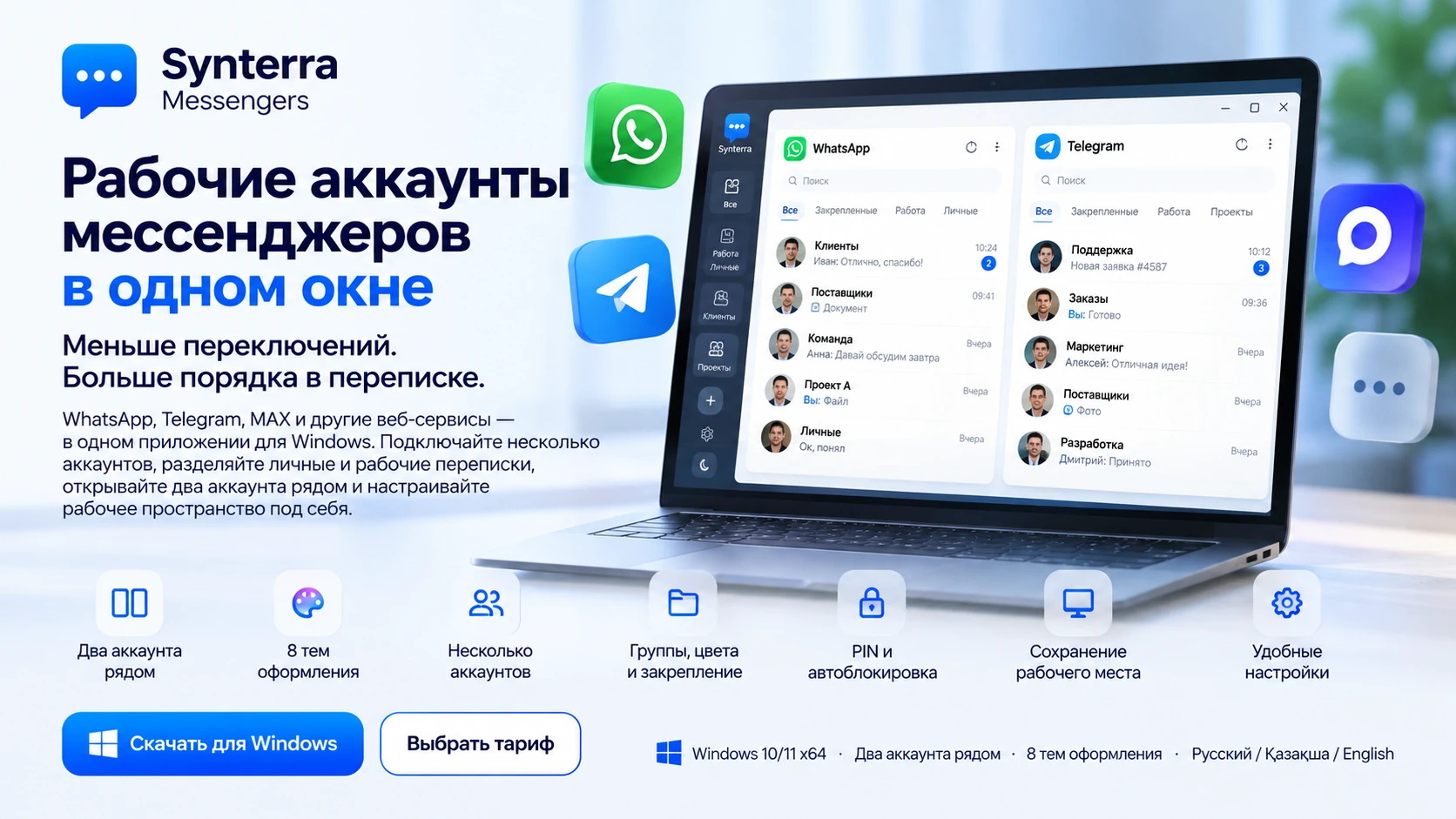
 Synterra Messengers
Bring your accounts into one window and see how much more comfortable your usual working day can become.
Request the Windows appWhatsApp will open with a prepared request. Tap Send, and we will send the program archive and setup instructions in the chat.
14 days free · up to 10 accounts in total on a new PCYou can send the request from your phone and install the program on your Windows computer later.
Need help choosing? Call us ↗